


Upgrade Configuration Resilience from Read-only to Read-write consent to allow remediation deployments. You must:
- Grant consent to the registration application first.
- Grant the Read-write upgrade next.
The registration application is a highly privileged service principal that is temporarily created in your tenant. It allows CoreView to modify existing applications and create new ones. Without it, CoreView cannot upgrade to read-write access.
Prerequisites
- Mandatory: you must sign in with a Global Administrator role or higher.
- Recommended: use an incognito browser window when opening the registration application consent link.
Consents needed to upgrade
1. Grant consent to the Registration application
First, you need to give consent to create a Registration application.
- Go to Settings > Organization settings > Configuration management.
- Copy the link displayed in the yellow banner by clicking on the button “Copy link to clipboard”.

- Open an incognito browser window and paste the copied link into the address bar.
- You will encounter the standard Microsoft “Pick an account” interface: select the Microsoft 365 account to which Global Admin role has been assigned.
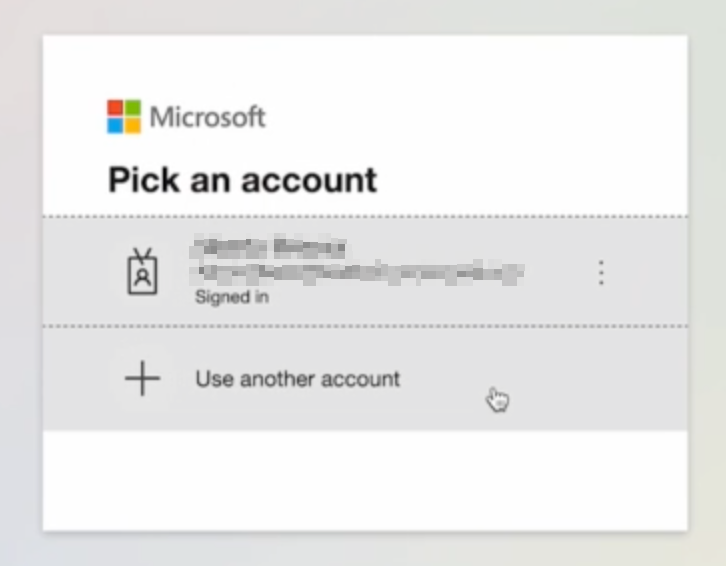
- Next, the Microsoft “Permissions requested” page appears, displaying the requested permissions to create the Registration app. Select “Accept”.

- After accepting, you will be redirected to the Consent granted successfully page. Click on “Go to home” to go back to the Configuration management page.

2. Grant read-write consent
After consent is granted to the registration application, you need to consent to the Read-write permissions.
- In the blue banner, select “Upgrade to read-write mode”.

- Wait for the page to refresh. A “Progress” toast appears in the upper-right corner, indicating that the app is being upgraded.
- Remain on the page until it refreshes again and a “Success” toast appears in the upper-right corner. This can take a few minutes.
- In the “Success” toast, select “Grant consent”.

- The Microsoft “Permissions requested” page appears again, with the list of permissions required by Configuration Resilience to perform writing actions on your tenant. Select “Accept”.
- You will be redirected to the Consent granted successfully page again. Click on “Go to home” to go back to the Configuration management page.
Read-write consent is granted
You are redirected back to the Configuration management page after granting consent. The page no longer displays consent banners when both read and write consent have been granted.

You can upgrade your tenant to read-write mode only if it was onboarded in read-only mode.
You cannot downgrade a tenant from read-write to read-only mode.